
1. Introduction
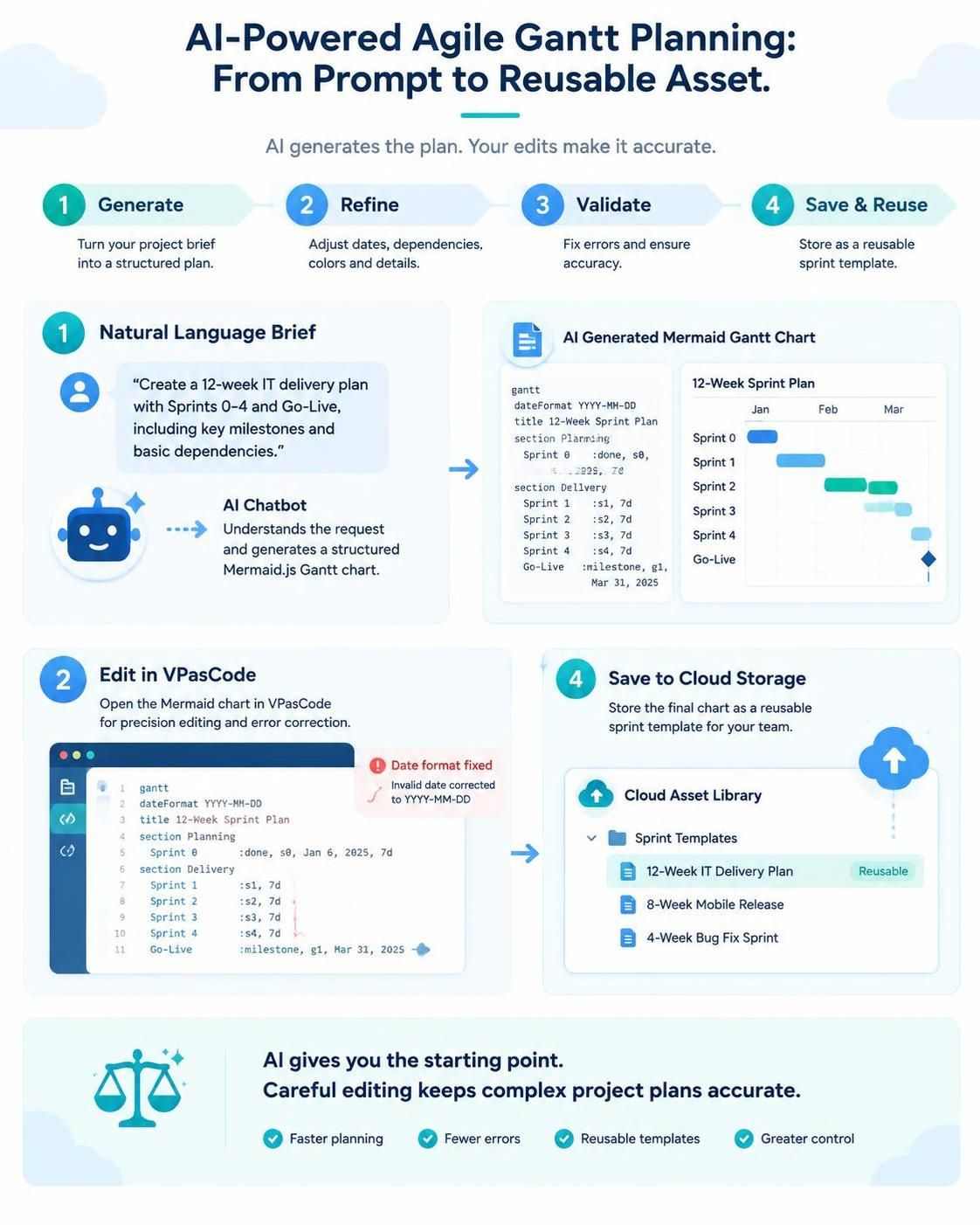
Visual Paradigm’s AI Chatbot transforms natural language project plans into structured Mermaid.js diagrams instantly, bridging the gap between Agile planning and visual documentation. However, AI generation is just the starting point. For complex projects like a 12-week IT delivery plan, you need precision editing, error correction, and long-term asset management. This guide walks you through generating an Agile Gantt chart via AI, refining it in VPasCode, and leveraging new cloud-based features to ensure your diagrams remain accurate and reusable for future sprints.
2. The AI Prompt Strategy
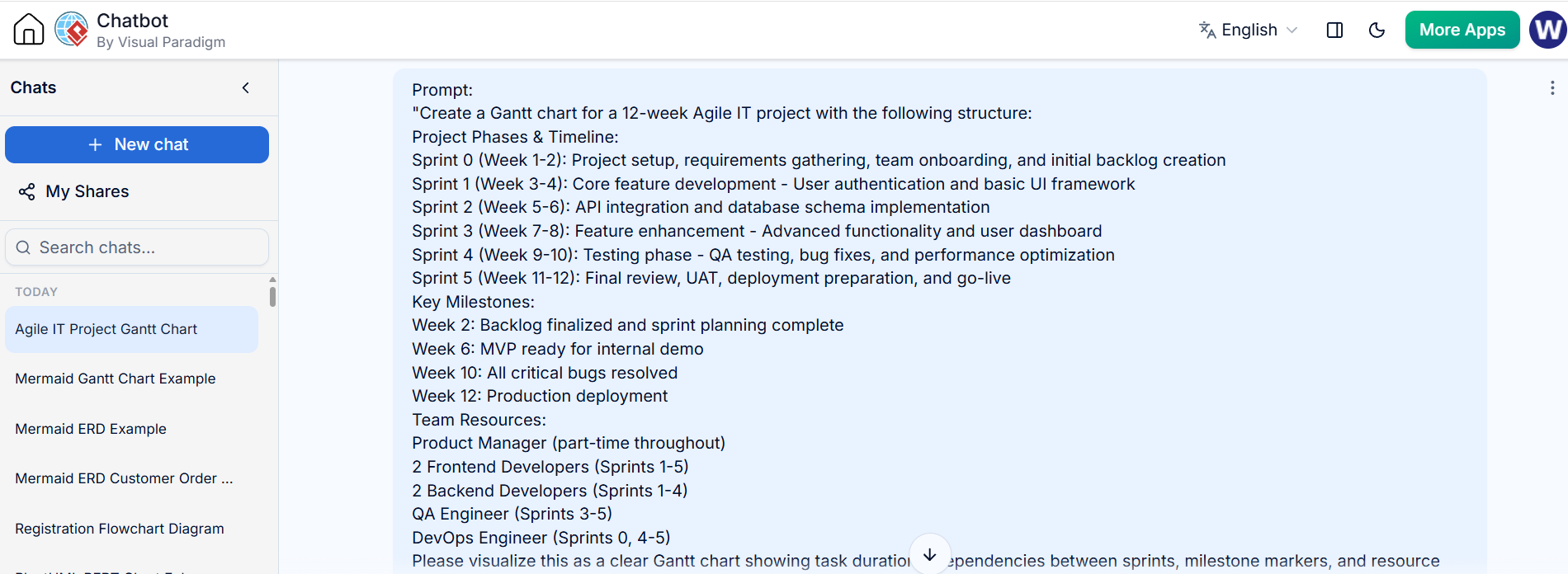
To get the best result from the VP AI Chatbot, your prompt must be structured logically. Below is the optimized prompt used to generate the chart in this guide.
📋 Copy This Prompt:
“Create a Gantt chart for a 12-week Agile IT project with the following structure:
Project Phases & Timeline:
Sprint 0 (Week 1-2): Project setup, requirements gathering, team onboarding, and initial backlog creation.
Sprint 1 (Week 3-4): Core feature development – User authentication and basic UI framework.
Sprint 2 (Week 5-6): API integration and database schema implementation.
Sprint 3 (Week 7-8): Feature enhancement – Advanced functionality and user dashboard.
Sprint 4 (Week 9-10): Testing phase – QA testing, bug fixes, and performance optimization.
Sprint 5 (Week 11-12): Final review, UAT, deployment preparation, and go-live.
Key Milestones:
Week 2: Backlog finalized and sprint planning complete.
Week 6: MVP ready for internal demo.
Week 10: All critical bugs resolved.
Week 12: Production deployment.
Team Resources:
Product Manager (part-time throughout)
2 Frontend Developers (Sprints 1-5)
2 Backend Developers (Sprints 1-4)
QA Engineer (Sprints 3-5)
DevOps Engineer (Sprints 0, 4-5)
Please visualize this as a clear Gantt chart showing task durations, dependencies between sprints, milestone markers, and resource allocation. Use different colors for each sprint phase and highlight critical path items.”
3. Step-by-Step Execution Guide
Step 1: Access the AI Chatbot
-
Log in to your Visual Paradigm Online account.
-
Navigate to the AI Chatbot.
-
Click “+ New chat” to start a fresh session.
Step 2: Input the Prompt
Paste the comprehensive prompt provided above into the chat input box. The AI will process the text and convert it into a Mermaid Gantt chart preview.
Step 3: Review the Preview
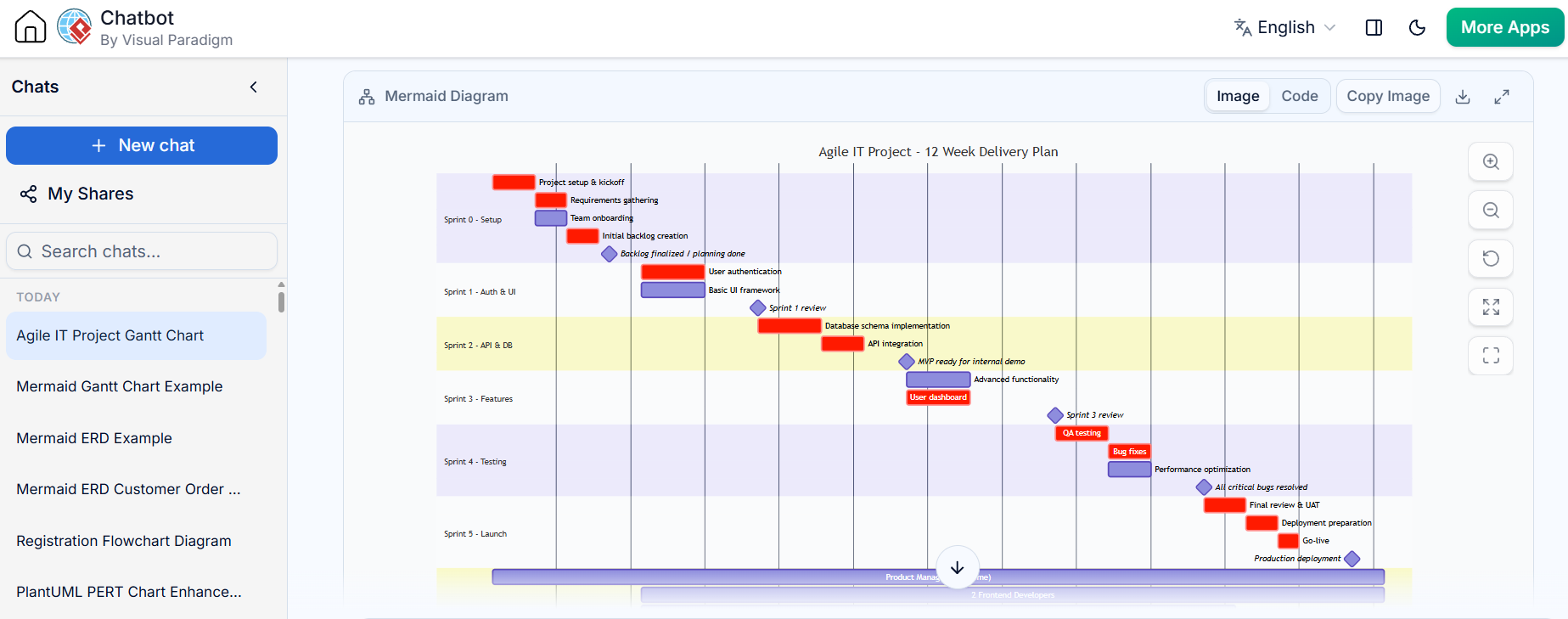
The AI will generate a visual preview of the Mermaid Diagram. Check that the weeks align with your calendar and that milestones (diamonds) are placed correctly.
4. Advanced Editing: Sending to VPasCode
While the Chatbot is great for generation, VPasCode is the professional editor for refining, saving, and managing your diagram code.
🎯 Purpose of VPasCode
-
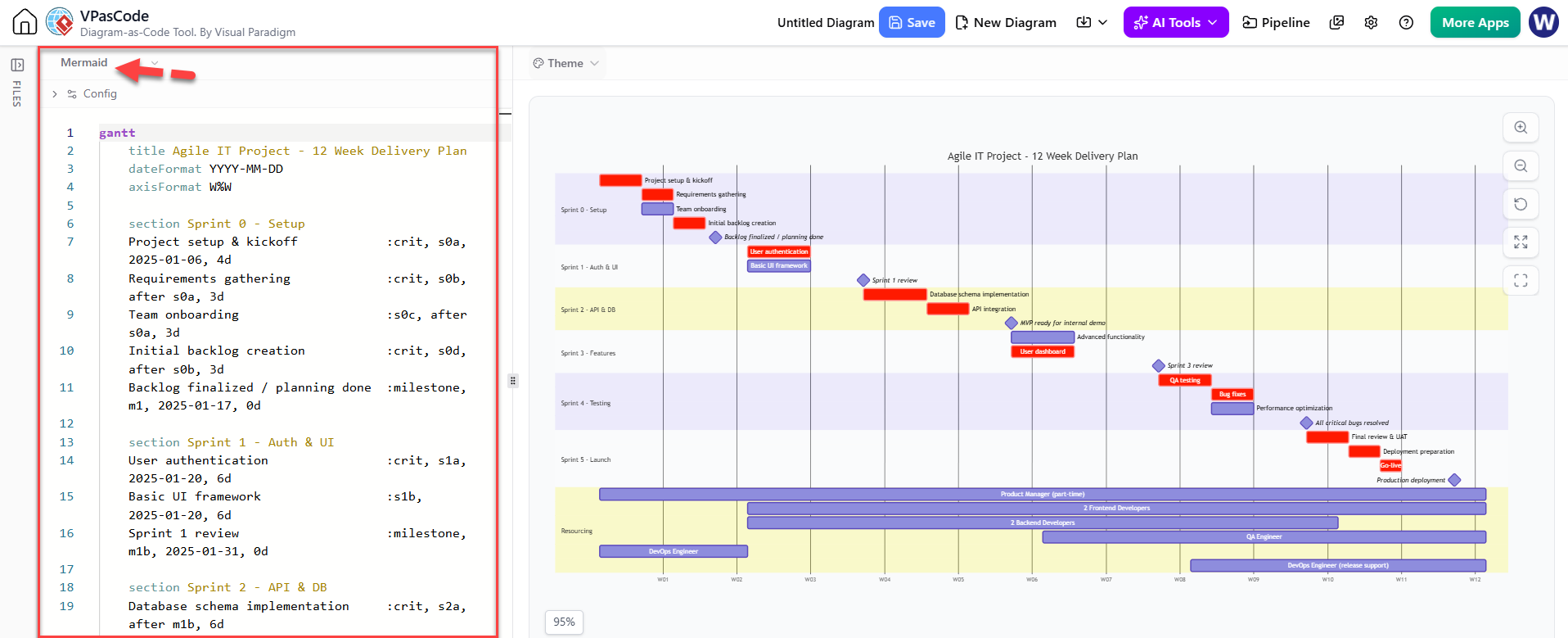
Full Code Control: Edit the raw Mermaid syntax directly with syntax highlighting and auto-completion.
-
Diagram-as-Code Management: Save your diagram as a proper file within your Visual Paradigm workspace, allowing for versioning and organization.
-
Advanced Customization: Access configuration options (themes, axis formats, date formats) that are harder to tweak via simple chat prompts.
-
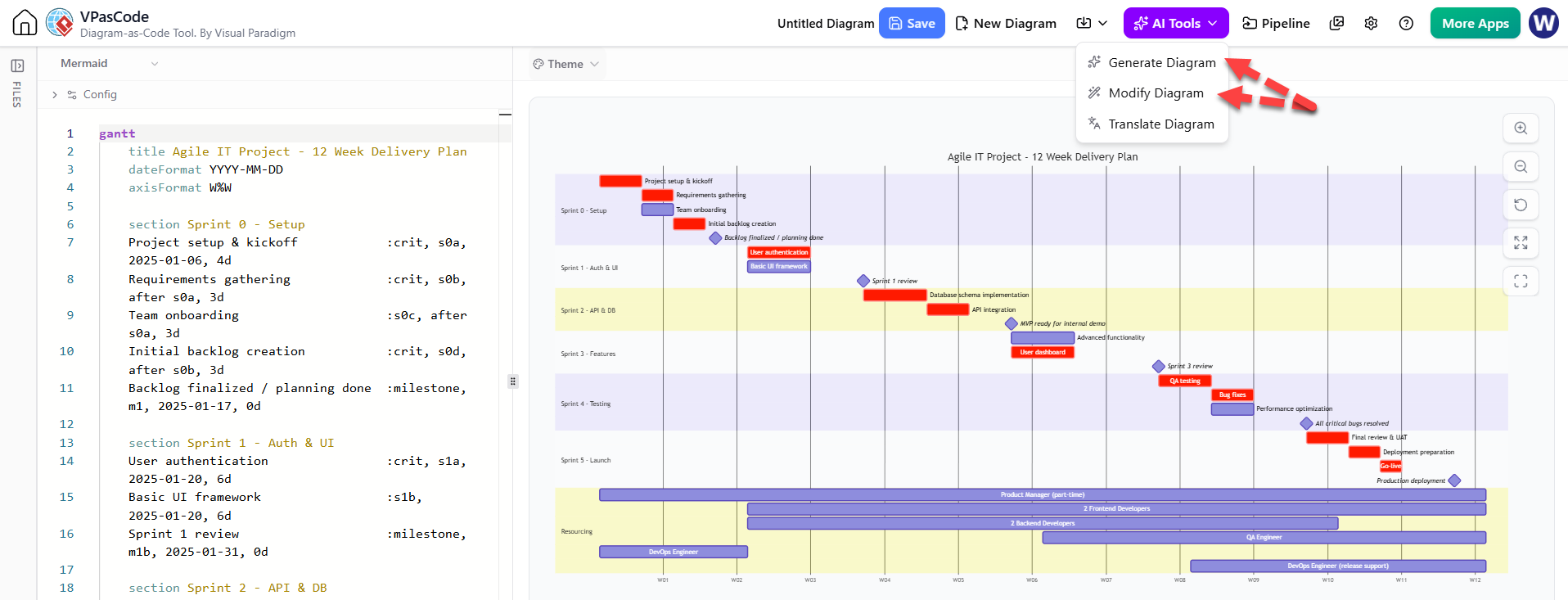
Seamless Integration: It acts as the bridge between a quick AI idea and a production-ready project artifact.
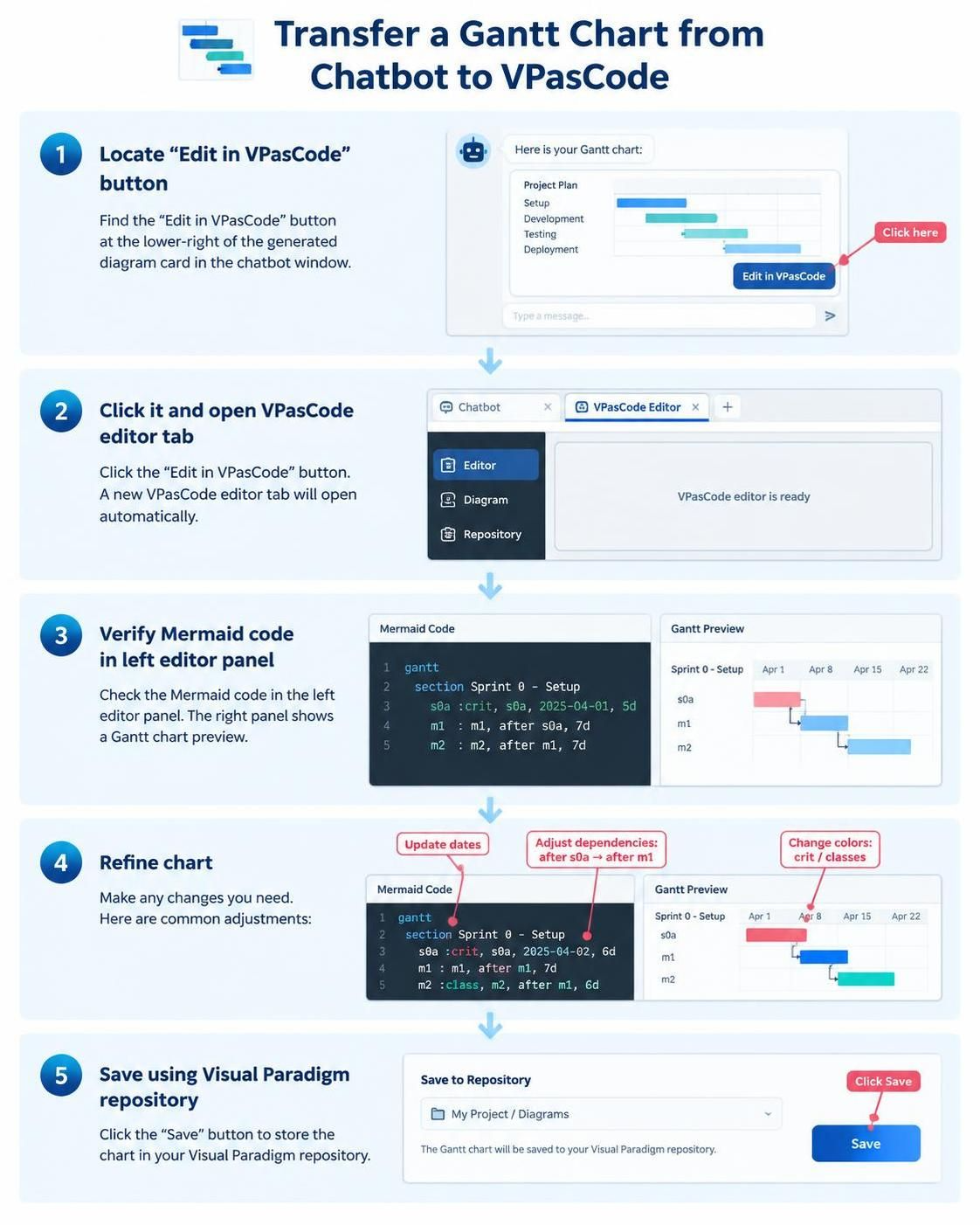
🛠️ Steps to Transfer from Chatbot to VPasCode
-
Locate the Button: In the AI Chatbot interface, look at the bottom right corner of the generated diagram card. You will see a button labeled “Edit in VPasCode” (indicated by the red arrow in the screenshot below).
(See Screenshot 1: The “Edit in VPasCode” button highlighted in the Chatbot interface)
-
Click to Transfer: Click the “Edit in VPasCode” button. The system will automatically open a new tab or window containing the VPasCode Editor.
-
Verify the Code: The left panel of VPasCode will display the raw Mermaid code generated by the AI.
-
You will see the
ganttkeyword at the top. -
Sections like
section Sprint 0 - Setupwill be clearly visible. -
Tasks are defined with syntax like
Task Name :crit, id, date, duration.
-
-
Refine Your Chart:
-
Fix Dates: If the AI guessed dates (e.g.,
2025-01-06), update them to your actual project start date. -
Adjust Dependencies: Change
after s0atoafter m1if you want a task to start after a milestone instead of another task. -
Change Colors: Modify the
crit(critical) tags or add custom classes to change bar colors.
-
-
Save Your Work: Once satisfied, click the “Save” button at the top of the VPasCode interface to store the diagram in your Visual Paradigm repository.
(See Screenshot 2: The VPasCode interface showing the raw Mermaid code on the left and the live preview on the right)
5. Visualizing the Output
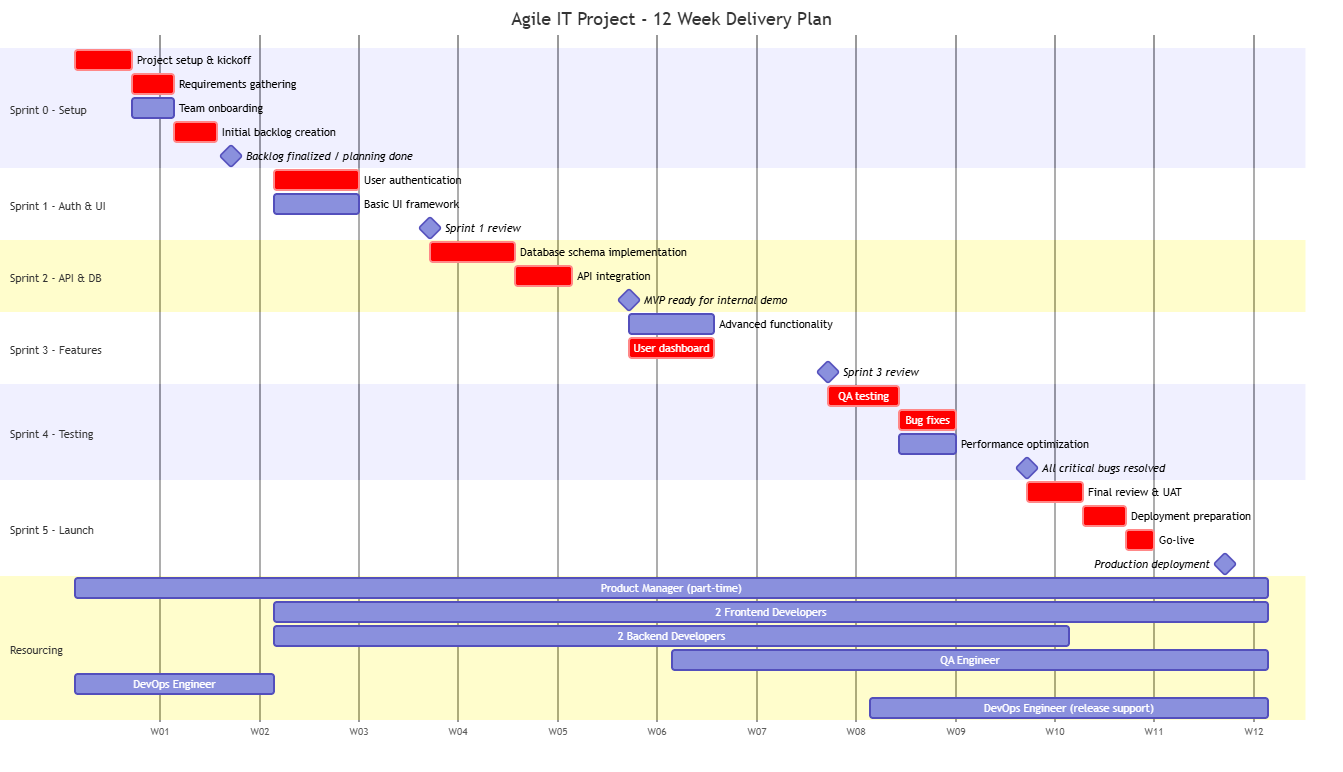
Below is the screenshot of the Mermaid Gantt Chart generated by the Visual Paradigm AI Chatbot based on the prompt above. Notice how it clearly separates the Sprints (0-5), highlights the Milestones with diamond shapes, and uses color coding to distinguish phases.
Key Features Visible in the Generated Chart:
-
Section Headers: Clear labels for “Sprint 0 – Setup”, “Sprint 1 – Auth & UI”, etc.
-
Milestone Diamonds: Distinct markers for “Backlog finalized,” “MVP ready,” and “Production deployment.”
-
Resource Allocation: A dedicated “Resourcing” section at the bottom showing the timeline for the Product Manager, Frontend/Backend Developers, QA, and DevOps.
-
Timeline Axis: A clear 12-week horizontal progression (W01 – W12).
6. Pro Tips for Agile Gantt Charts
-
Iterate with AI: If the first result isn’t perfect, reply to the chat with: “Move the QA testing to start in Week 8” before sending to VPasCode.
-
Use IDs for Dependencies: In the code, ensure every task has a unique ID (e.g.,
s0a,m1). This makes linking tasks (after s0a) much easier in VPasCode. -
Critical Path: Ask the AI to “Highlight the critical path in red” using the
:crittag in Mermaid syntax to immediately see which tasks will delay the Go-Live if they slip.
7. New Features: Enhancing Your AI-to-Diagram Workflow
Visual Paradigm has introduced two critical enhancements that directly improve the AI-generated Gantt chart experience:
🤖 AI Auto Error Fix
Mermaid syntax can be unforgiving—a missing comma, incorrect date format, or invalid dependency reference will break your chart. Previously, debugging these errors required manual code inspection. Now, AI Auto Error Fix automatically detects and corrects syntax issues in real time within VPasCode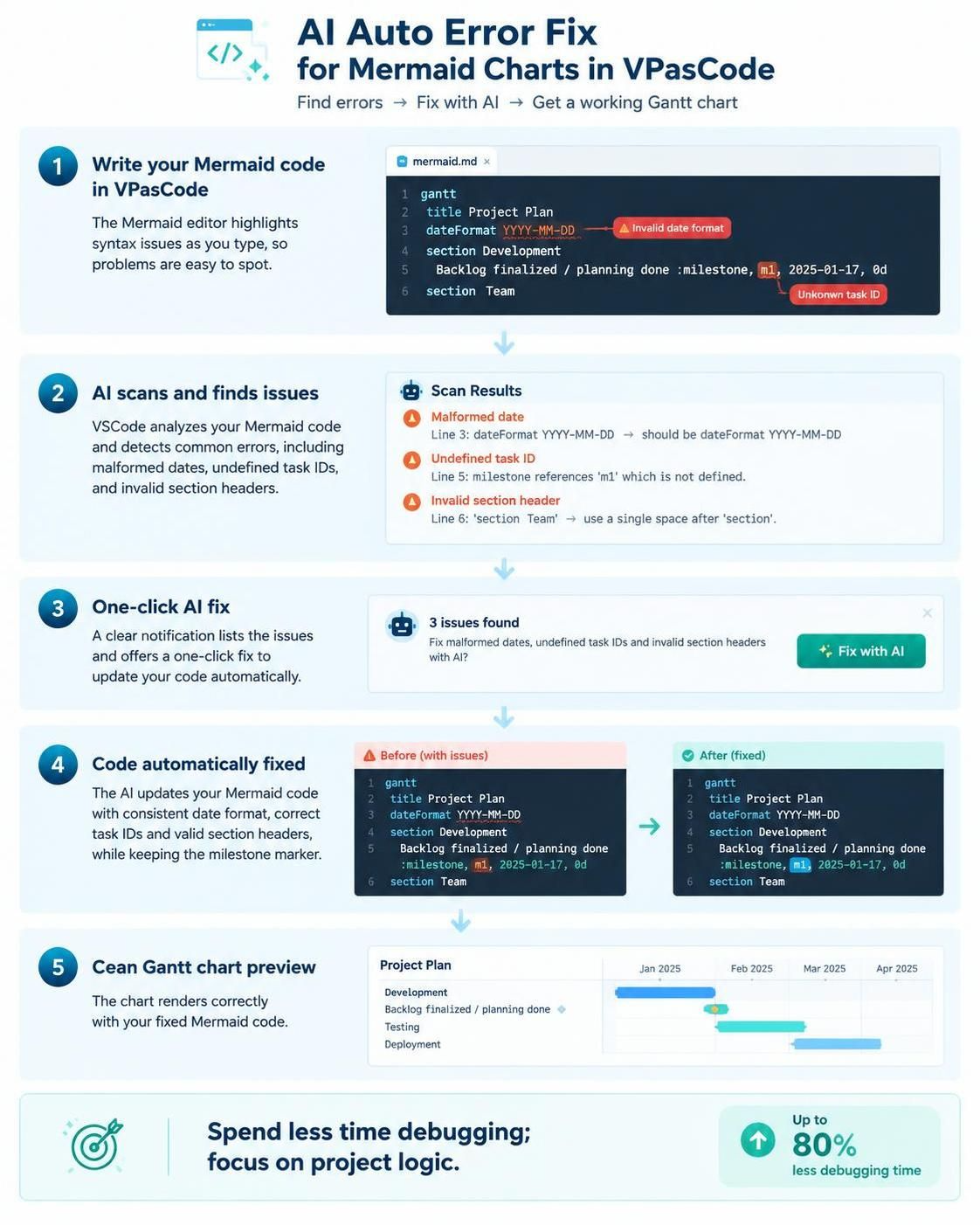
-
How It Works: When you transfer an AI-generated chart to VPasCode, the system scans the Mermaid code for common errors (e.g., malformed dates, undefined task IDs, invalid section headers). If issues are found, a notification appears with a one-click “Fix with AI” option.
-
Use Case Example: If the AI generates
Backlog finalized / planning done :milestone, m1, 2025-01-17, 0dbut the date format conflicts with yourdateFormat YYYY-MM-DDsetting, AI Auto Error Fix will adjust it to match without breaking the milestone marker. -
Benefit: Reduces debugging time by up to 80%, allowing you to focus on project logic rather than syntax validation.
☁️ Save AI-Generated Artifacts in Cloud Storage
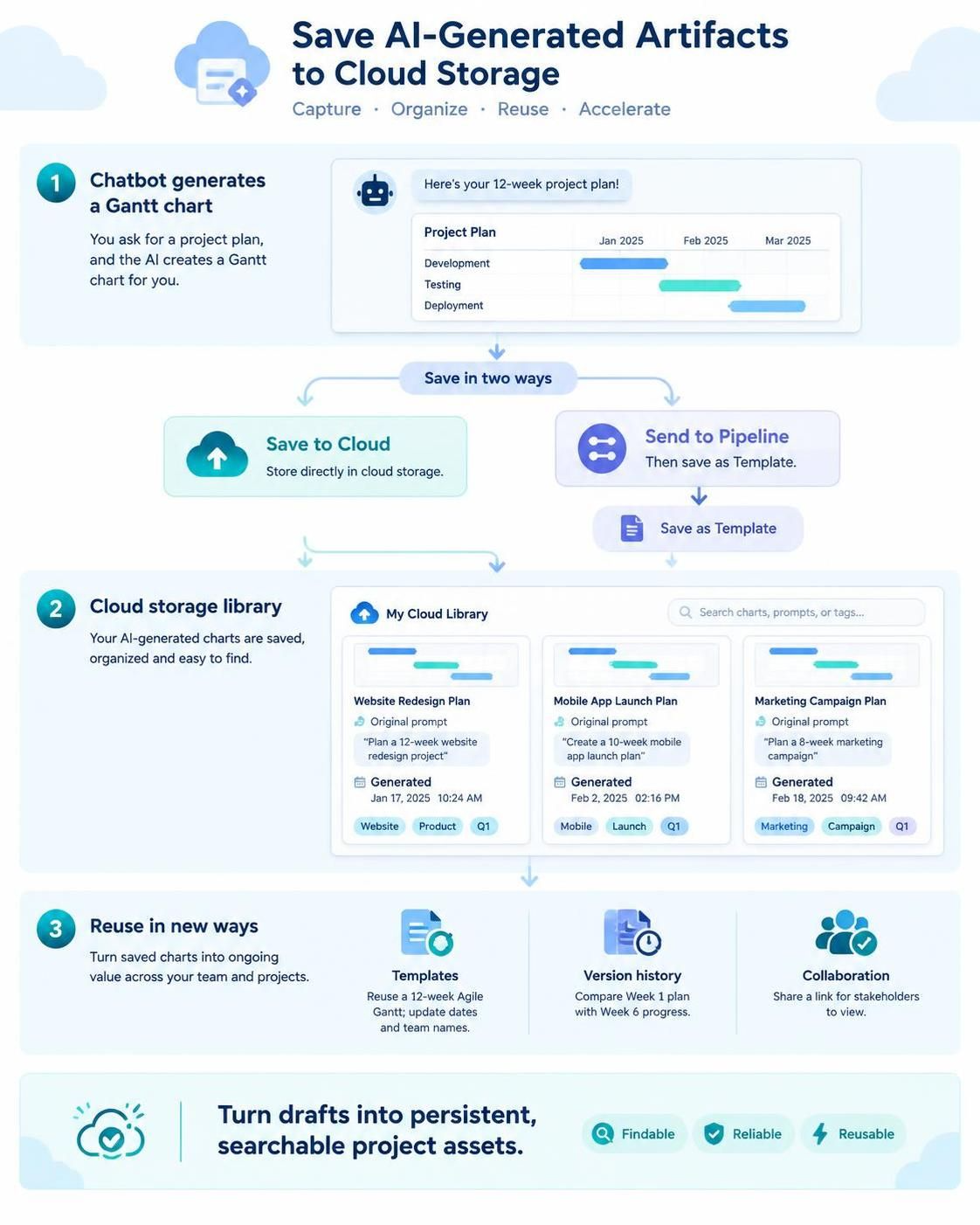
AI-generated diagrams are no longer ephemeral. You can now save any chart created via the Chatbot directly to your Visual Paradigm Cloud Storage for future reuse, sharing, or versioning.
-
How It Works: After generating a chart in the Chatbot, click the “Save to Cloud” icon (or use the “Send to Pipeline” → “Save as Template” flow). The artifact is stored with metadata including the original prompt, generation timestamp, and associated project tags.
-
Reuse Scenarios:
-
Template Library: Save your 12-week Agile Gantt as a template. For the next project, load it from Cloud Storage and update only the dates and team names.
-
Version History: Track how your sprint plan evolves across iterations. Compare Week 1’s planned Gantt vs. Week 6’s actual progress using saved artifacts.
-
Team Collaboration: Share saved artifacts with stakeholders via link. Non-technical members can view the chart without needing Mermaid knowledge.
-
-
Benefit: Transforms AI outputs from disposable drafts into persistent, searchable project assets that accelerate future planning cycles.
Integration Note
These new features seamlessly integrate with the existing workflow:
-
Generate chart via AI Chatbot →
-
Click “Edit in VPasCode” →
-
AI Auto Error Fix validates/corrects syntax automatically →
-
Refine dates/resources manually if needed →
-
Click “Save to Cloud” to store as reusable artifact.
This end-to-end pipeline ensures your Agile Gantt charts are not only generated quickly but also maintained accurately and leveraged repeatedly across projects.
Conclusion
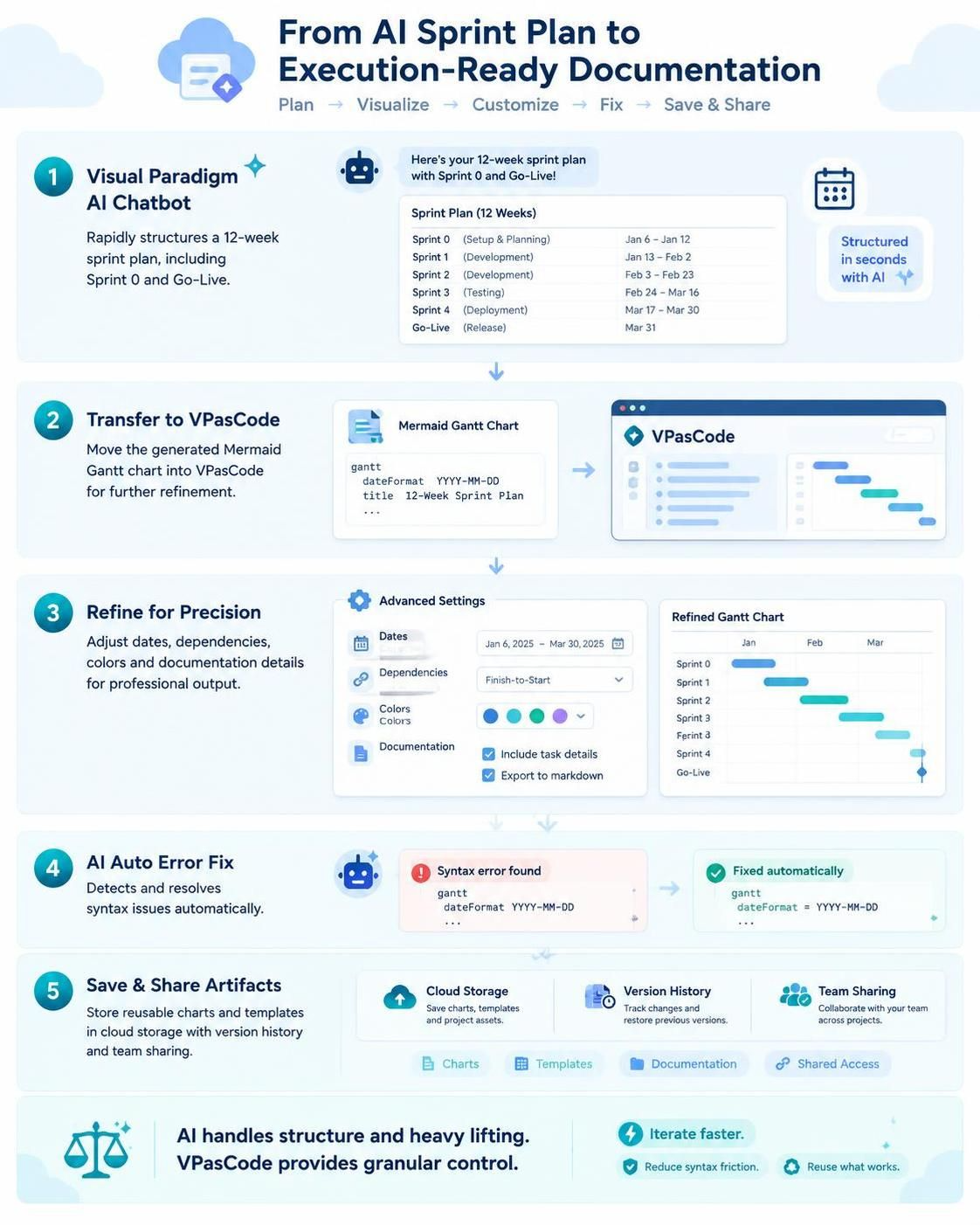
By combining Visual Paradigm’s AI Chatbot with VPasCode, you create a powerful workflow that balances speed with precision. The AI handles the heavy lifting of structuring your 12-week sprint plan, while VPasCode gives you the granular control needed for professional-grade documentation. With new features like AI Auto Error Fix and Cloud Artifact Storage, your team can now iterate faster, eliminate syntax headaches, and build a reusable library of project templates. Whether you’re planning Sprint 0 or preparing for Go-Live, this integrated approach ensures your Agile visualization is always aligned with your execution strategy.